Features
See how FleetView works, screen by screen.
Every picture on this page is the real app with sample data, from the broker’s rate con to the roadside report.
Book a load
From rate con to your driver’s phone
FleetView AI reads the broker’s rate confirmation (rate con) from a PDF, a photo or a pasted email, and you confirm each line before you book the load.
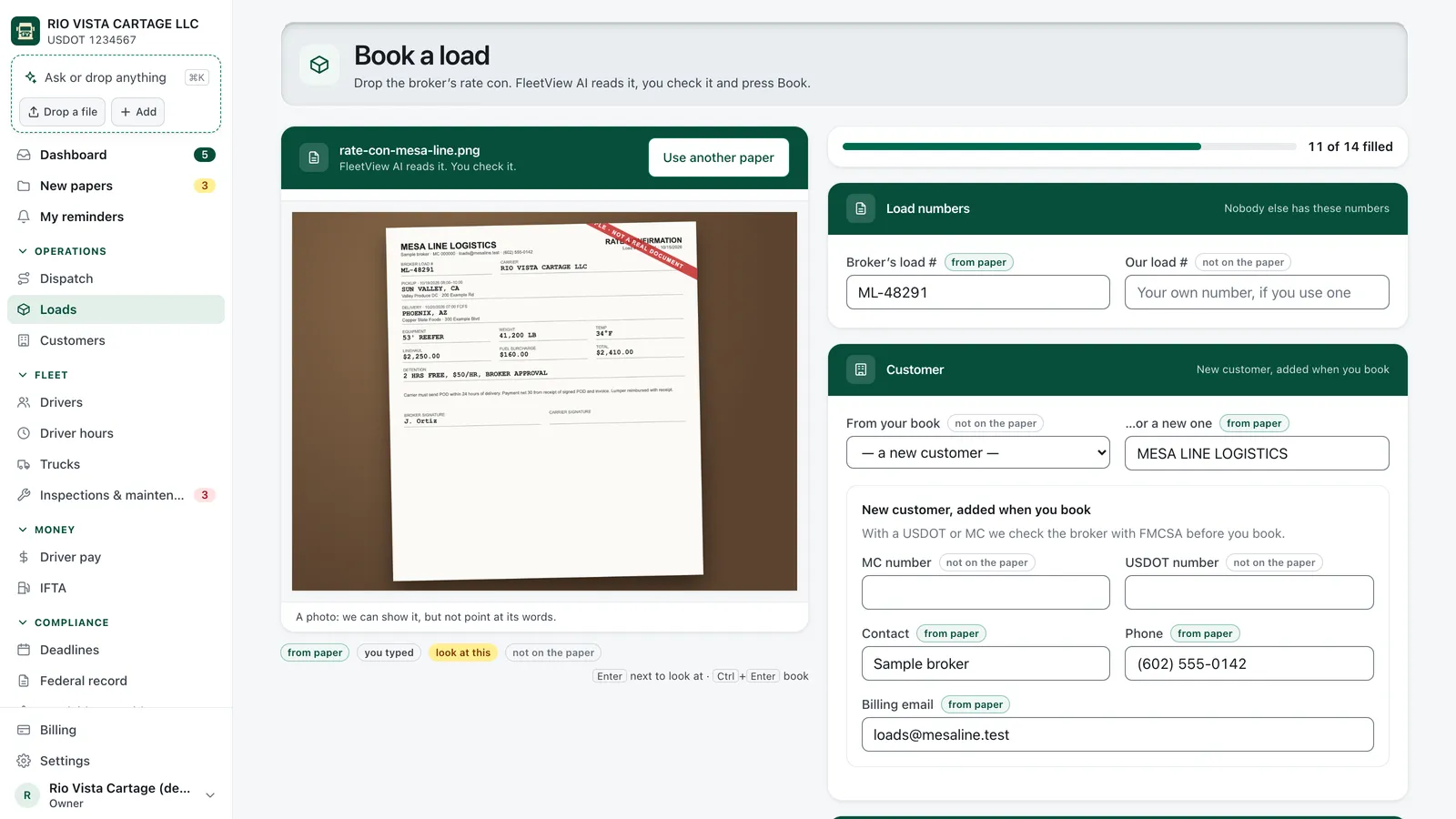
Each line shows where it came from
FleetView marks each line from the rate con, typed by you, or not on the paper.
Only a driver who can take it
FleetView will not give a load to a driver whose medical card or CDL ends before delivery.
The broker’s FMCSA status
The booking screen shows whether the broker’s authority is active, and when FleetView checked.
Invoices
Detention and lumper charges on the invoice
Your driver’s Arrived and Left taps and the lumper receipt photo land on the load, and you choose which charges go on the invoice.
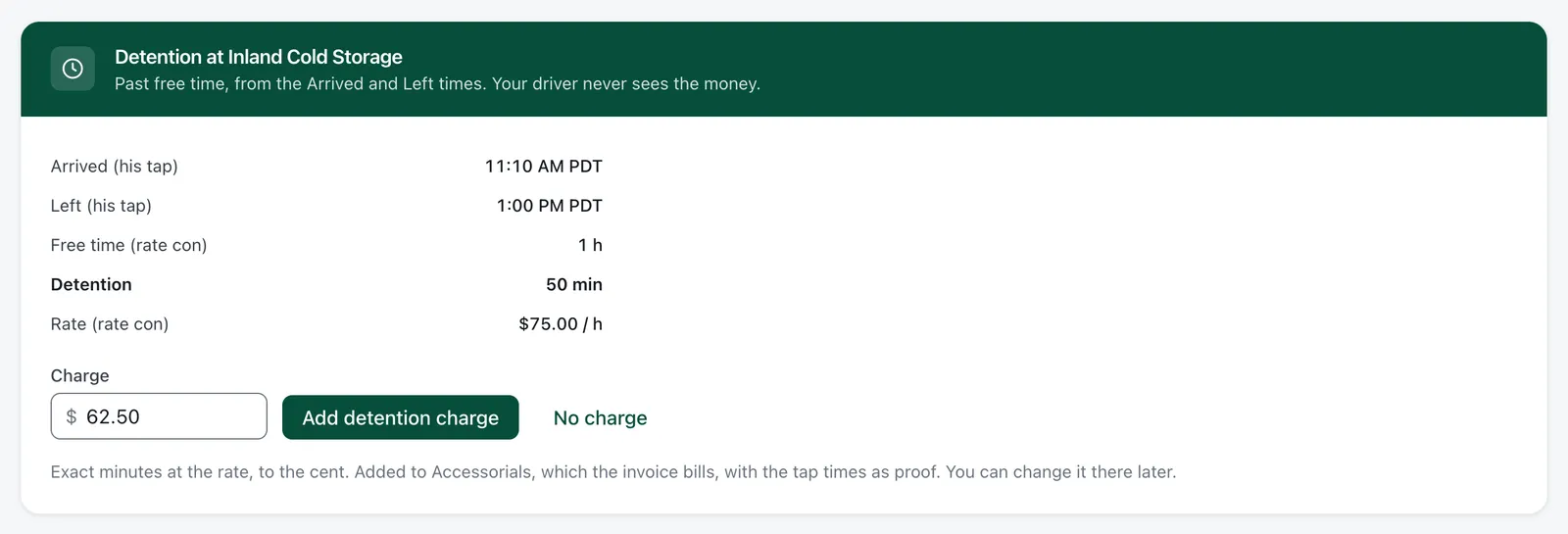
Detention from arrive and leave
The load shows the minutes past the free time, and you press Add detention charge or No charge.
The lumper charge, from a photo
FleetView AI reads the amount on your driver’s receipt photo, and you confirm it.
One PDF for the broker
The invoice, rate con, BOL and POD come in one file that you download and send yourself.
Dispatch
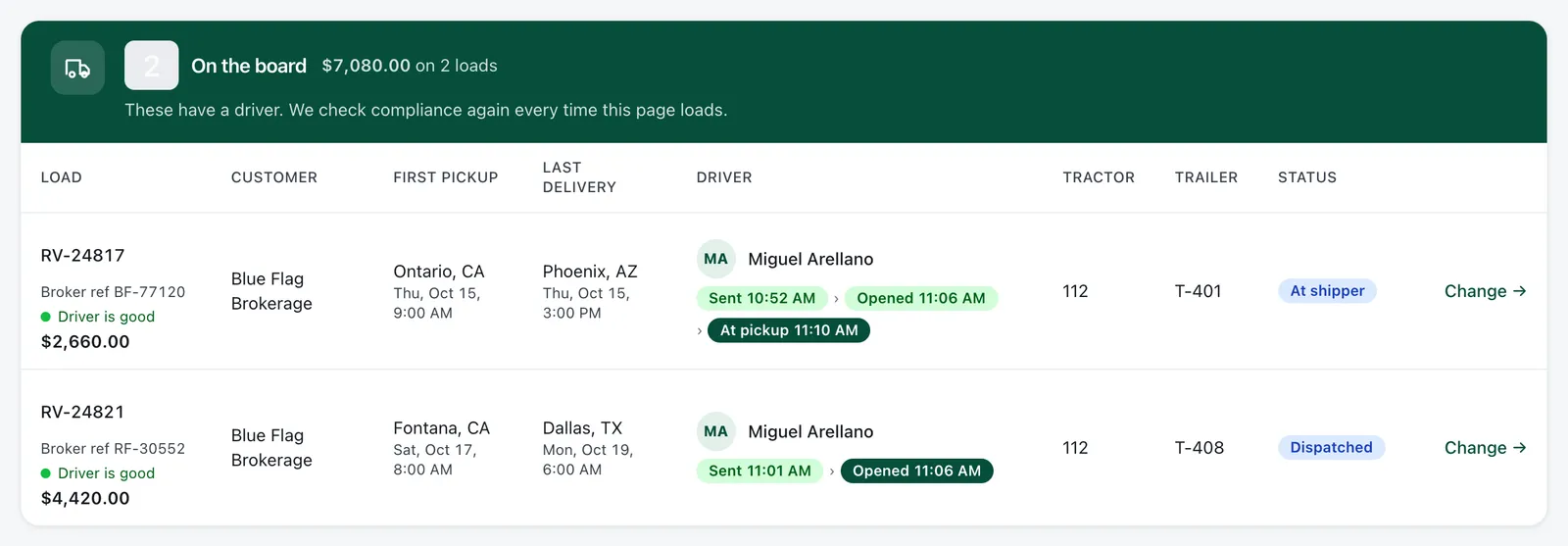
Every stop on your board, and a tracking link for the broker
Your board moves through Sent, Opened, At pickup, Loaded, Delivered and POD in as your driver presses each step.
Late, with the reason
Your driver picks how late and why, and you see the new ETA on the board.
A link for the broker
The broker sees each stop by city and state, with no map, no driver name and no money.
Fewer “where is my load?” calls
The broker opens the link instead of calling you.
Driver app
Four tabs and one big button
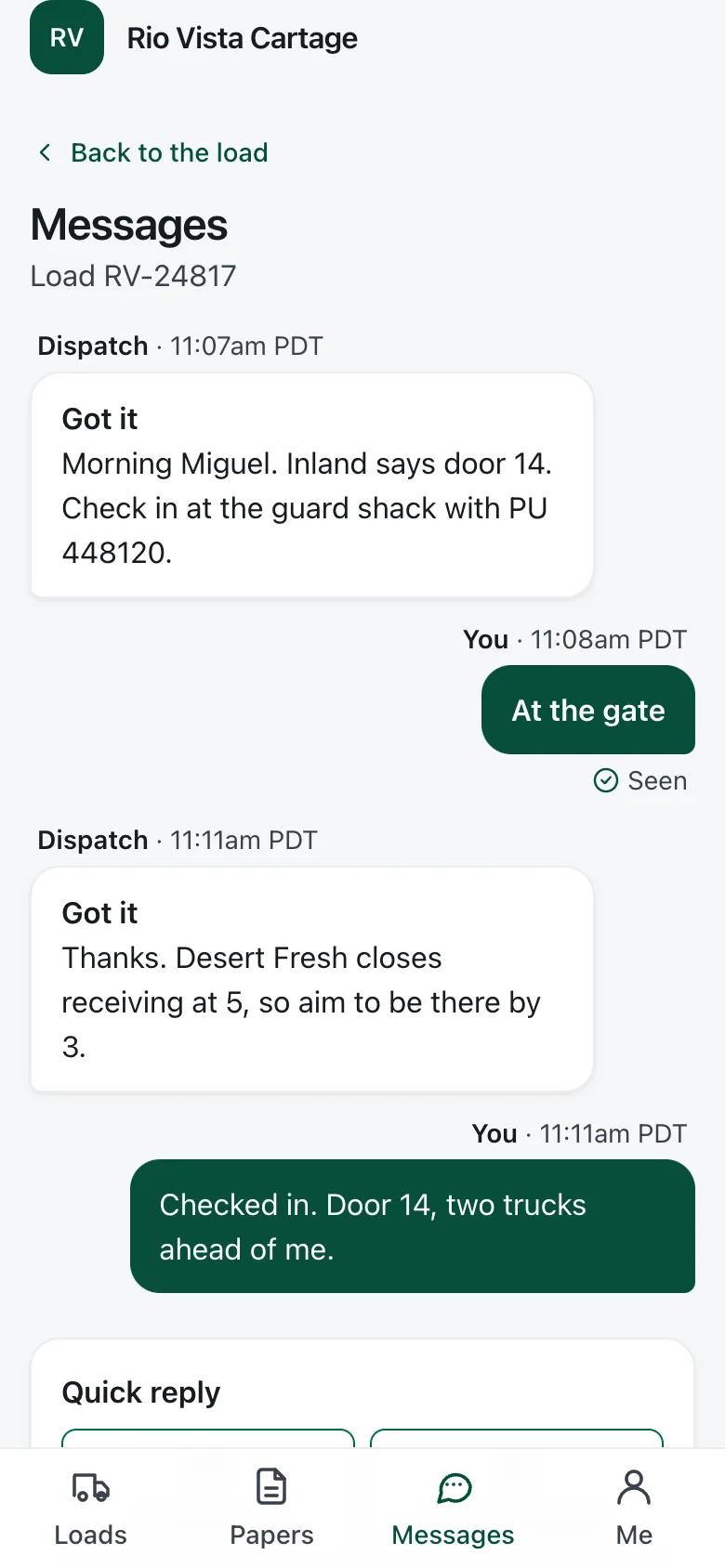
The driver app runs on your driver’s own phone, with four tabs: Loads, Papers, Messages and Me.
One button for each step
Your driver presses I’m here, Loaded, then Left, and the next step is always the biggest button.
Messages kept with the load
Each message stays on its load, and you see when your driver read it.
Your money stays off the phone
Rates, invoices, pay and test results never reach your driver’s phone.
DOT dates
Your deadline list and your FMCSA record
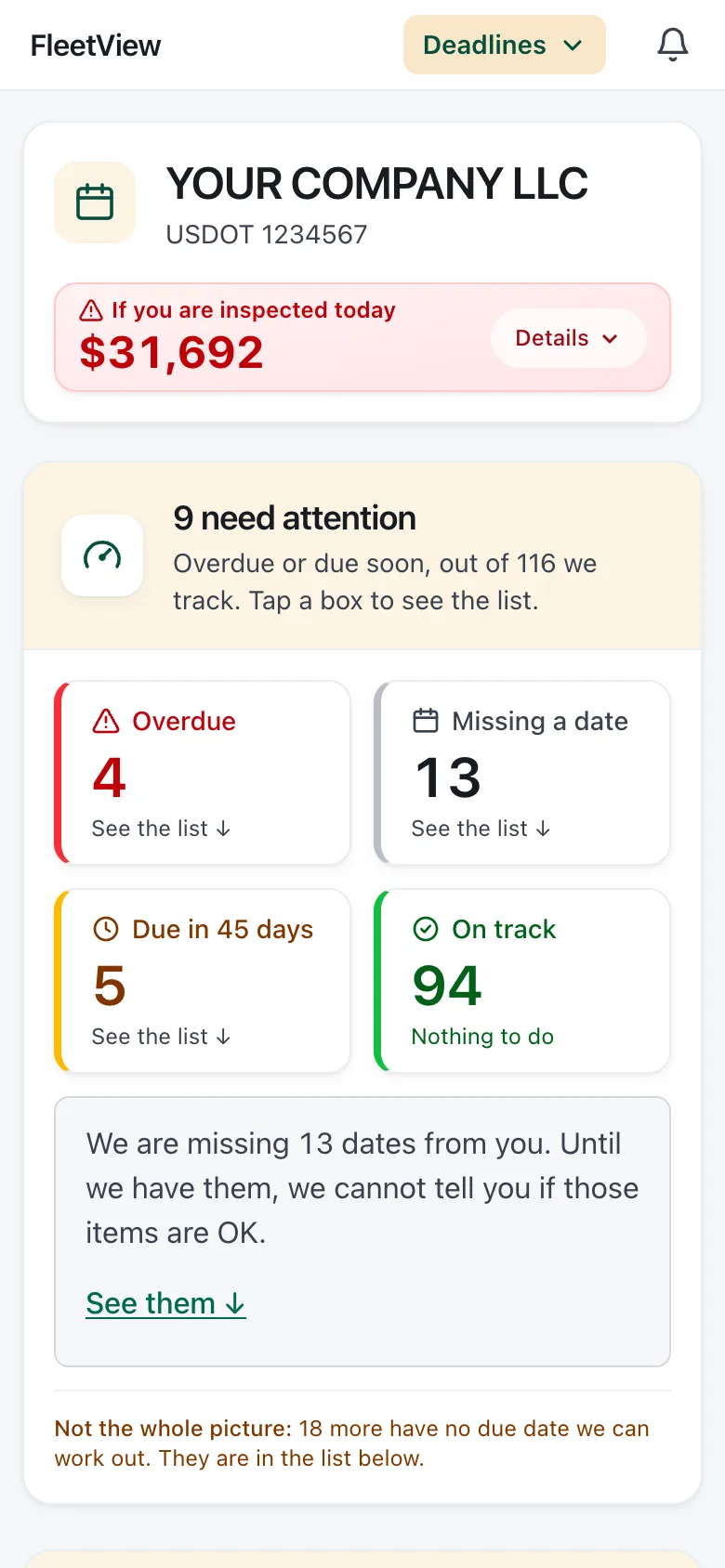
FleetView sorts medical cards, CDLs, inspections, permits and filings soonest first, each next to the rule that sets it.
Add a date from a photo
FleetView AI reads the names and dates on a card, and you confirm before it saves.
Blank dates show up
A date nobody entered shows as missing, never as on track.
Record changes that could stop a truck
FleetView checks your FMCSA record about once a day, and you get an email the day it sees an out-of-service order.
Roadside
Be ready when your driver is pulled over
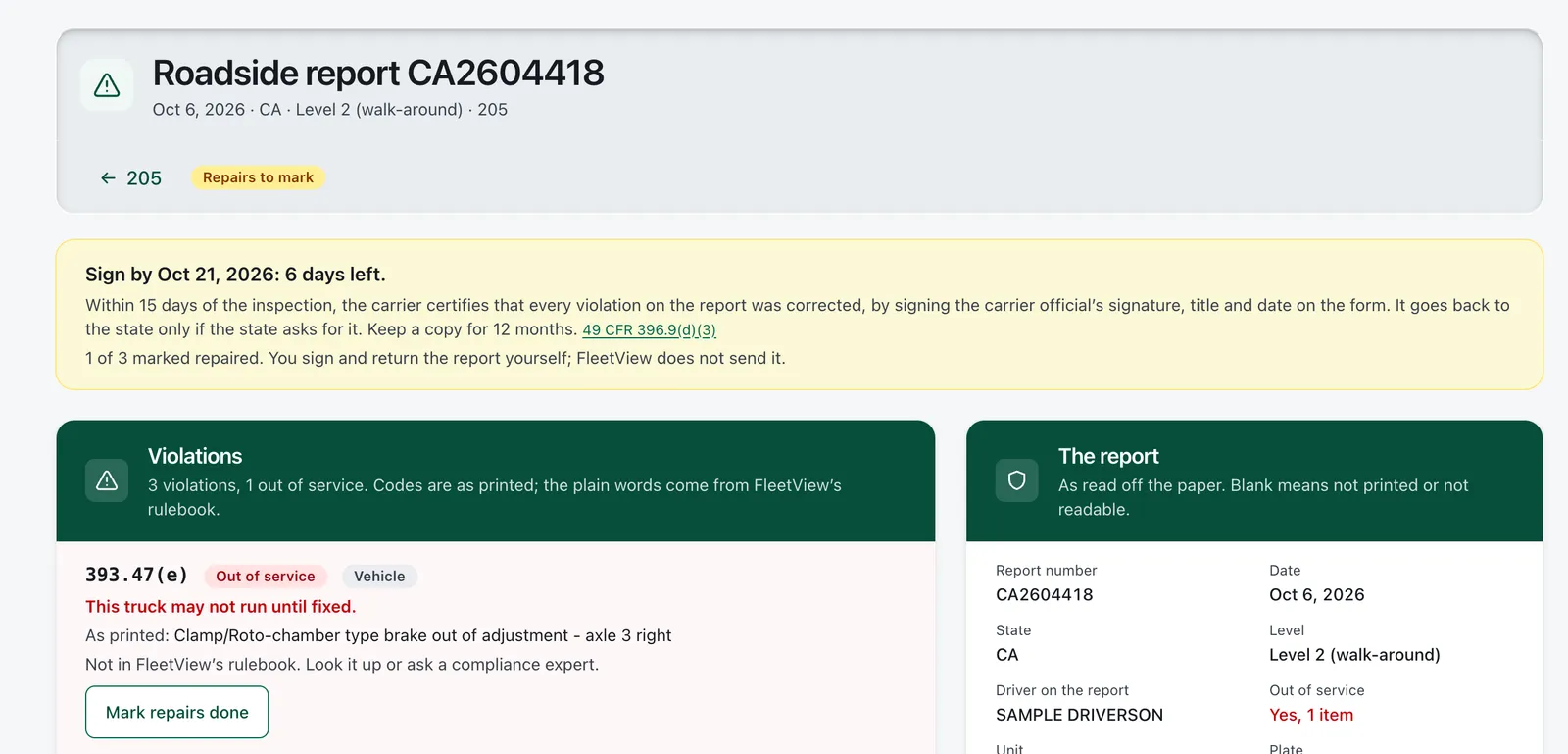
Your driver takes a photo of the officer’s report, and you see each violation with the days left to sign it.
The daily truck check
Your driver presses All good, or Something’s wrong and adds a photo.
Truck papers behind one button
Registration, insurance and permits sit behind one Show officer button on your driver’s phone.
An accident register
FleetView keeps each crash and its papers for the 3 years the rules require.
Proof links
FleetView makes a link for a broker, an officer, an insurer or an auditor that shows only the papers that person needs, with no login, and you can turn it off any time.
One email each morning
FleetView emails you what is coming due each morning, and once you turn texts on, it texts you only when something cannot wait.
Where we stop
What we do not do
No GPS tracker
A location goes with a step only when your driver turns on Share my location.
Not an ELD, and we never edit logs
Your drivers keep logging on the device they use now.
We never file anything for you
The IFTA return, the MCS-150 and the roadside report are yours to sign and send.
We cannot run your Clearinghouse queries
FleetView shows when each query is due and keeps your proof.
We do not collect your money
You send the invoice, and the broker decides whether to pay.
State rules outside California
FleetView has state rules only for California.
Every screen on this page comes in one plan.
The bill counts the trucks you run. Drivers and office users add nothing to it.
30 days free. No card needed. Cancel anytime.